




Frequently Asked Technology Questions

%20(300%20x%20200%20px).png) Use of technology can be very confusing, especially when so many applications are being used - instructional, administrative, collaborative and for communication.
Use of technology can be very confusing, especially when so many applications are being used - instructional, administrative, collaborative and for communication.
Below are some frequently asked questions that are asked by SD72 technology users with some very simple answers and links to more helpful information.
Office 365
How do I log into office.com?
Open a web browser. Type in: office.com. Sign in using your SD72 email address and network password. You will have access to all of the Office 365 apps as well as your OneDrive Files. You can even access your Outlook emails from this location?
How do I access my OneDrive files from home?
 Open a web browser. Type in: office.com. Sign in using your SD72 email address and network password. Click on the OneDrive icon. This will provide you access to all of your files located on your SD72 computer (even your desktop files)
I would like my students to access Office 365 from their home computers. Is this possible?
Yes. Students can easily access Office from home. HERE is a set of instructions specifically written for students.
I can't see the school or booking calendar in my Outlook. How do I add this?
Click HERE for instructions on adding calendars to your Outlook.
Teams
How do I access my Teams
Click on the Teams icon either on your Desktop OR from your Taskbar. All of your Teams will be listed from the main page. You will most likely have an "administrative one" (school, organization, group) as well as a class Team. Elementary and Middle school teachers will only have one or two, High school teachers will have one for every block they teach.
How do I know which Team is my class Team? The names don't make any sense.
The Team starting with "22" will be the Team for you to use. It will have your list of students already added to it. You can delete the other Teams.
Can I rename my Team to a name that makes more sense to me?
Click on the ellipse ( . . .) beside the Team name -> Edit Team. Fill in new name. It is recommended that you include your name at the beginning and the date at the end "Hagen Media9 2020". HERE is a video that explains the same process.
Can I add other people to my Team? I have a team teacher or collaborator that I would like added
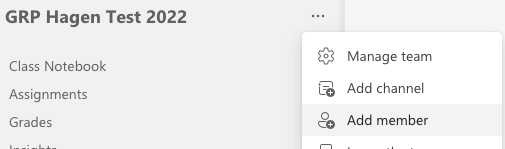 Click on the ellipse ( . . .) beside the Team name -> Add member. If it is a teacher, click on the Teacher tab. Start typing in the name - it will do an autocomplete. Select the person you'd like to add. Click Add -> Close.
I'd like to schedule a video meeting in Teams? How do I do that?
You can easily schedule a meeting right from your class Team. This way the link for it will be displayed in the Team post (discussion) section for students to easily access - even the younger students who don't have access to their emails. Check out THIS video to learn how.
I often have problems getting my audio to work consistently while in a Teams meeting? Is there anything I can do?
You need to make sure that you have the correct device selected AND that this is selected BOTH on your device as well as in Teams. Check out THIS set of instructions on how to do so.
I'd like to be sure students and parents know how to access and use Teams. Are there instructions that they could access?
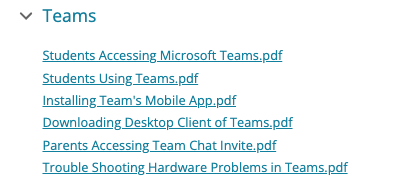 Yes. There is a section on the Student/Parent public page for Technology Help -> with a specific section just for Teams. There are a number of printed instructions as well as a number of videos located on the far right of the page. Click HERE to access this page.
Where can I find additional helpful resources for me to use Teams?
 The 72Learning Hub (our new instructional website) houses a page on all things "Teams". Here you can find a number of instructional print screens, the link to the ITC YouTube Teams playlist, the link to Mike Tholfsen's Teams YouTube playlists on tips and tricks, use in the classroom, timely releases for new updates and "shorts" to quickly explain concepts in less than a minute. Click HERE to access this page.
MyEd BC
How do I access MyEd BC login?
You can login using THIS link or access the link from the SD72 Portal Quicklinks.
What username and password do I use?
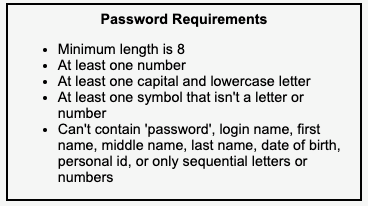
You use: firstnamelastname72 for your username. The password is a unique password that you will use specifically for MyEd. Be sure to follow the MyEd password protocols when creating your password.I forgot my password, what do I do?
If you have registered for Password reset for MyEd, just click on the "forgot my password" link. You will be sent a temporary password to use to login. Click HERE to learn more about password registration/reset. If you have not registered, you will need to contact Jane Nuttall, the MyEd helpdesk.
How do I do attendance?
The attendance screen can be accessed two different ways - from the landing page by clicking on the attendance icon next to the course (class) and from the Attendance Top Tab and clicking on the blue hyperlink to access the specific course (class). Click HERE for the printed set of instructions.
I'm an elementary or middle school teacher - how do I print class lists?
This is fairly easy to do. Go to the Attendance Top Tab. Reports drop down-> BC Class Lists -> BC class Lists w_grid. Click HERE for printed instructions.
I'm a high school teacher with multiple courses in one block - how do I print off ONE class list including all of the courses?
This is a bit more difficult. Go to Attendance Top Tab. Use the Advance Filter -> type in the appropriate Schedule and Schedule Term. Both of these can be found from your Attendance screen. Click "Search". Your courses for the ONE block will be displayed. Click on the Reports dropdown -> BC Class Lists with Grid -> Run. This will print all of the students on one page. Click HERE for printed instructions.
How do I send an email to the whole class?
The easiest way is to click on the Email icon located on the landing page next to the course. This will open the email app AND by default, all of the students listed in the course. If you'd like the email to go to the parents as well, click on the "Contacts" check box. Draft your email in the text box. If you have large attachments, use the "attach link" method, NOT the insert file method. Click HERE for more comprehensive instructions on using MyEd to send emails.
I'm an elementary or middle school teacher and I'd like to access the previous year's report card for my students.
Student Top Tap -> Reports Drop Down ->Report Cards (K-9 Single Term OR Middle Years and Secondary) Change date from 2021 (click on the magnifying glass) to 2019-2020 (click on the back arrow to see more date options) Run -> A pdf will be created with ALL of the students' Progress Reports. HERE is a video that explains the same process.
I'm a high school teacher and would like to see my students' previous year's transcripts.
This is a bit more difficult. Go to Student Top Tab -> Select the student whose transcript you'd like to see. Click on Transcript Side Tab. Use the Advance Filter-> change from Current Year to All Records. Click on the "Book Icon" located on the far top right -> Select "All". This will display ALL of the student's course marks.
I'm an elementary teacher and would like to print off a list of the Microsoft usernames and passwords. How do I do that?
This can be done from the Student Top tab and changing the Field Set to "Student Microsoft Username and Passwords. For complete instructions, click HERE.
Point of Instruction Device
How do I connect my device wirelessly to the Epson projector in my school?
This is done using the EasyMP application installed on your computer. Click HERE to view the video on how to configure it to connect.
How do I install a printer on my device?
By default, the school photocopier machine will be installed on your device to print to. If you would like additional printers installed, click HERE for the instructions.
How can I ensure privacy while printing?
The Konica Minolta printer-copiers in most school offices support secure printing, which allows you to print a document that only prints once you are physically at the printer. Here's how:
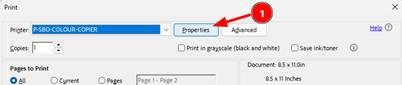
- In your print popup, click Properties (If you don’t see this, then you need to click “print using system dialog..” or “More settings” at the bottom of your print popup)
- For the “Output Method” option, choose “Secure Print” (If you don’t see the Output Method, then click on the “Basic” tab at the top)

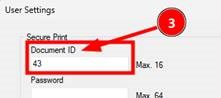
- When you select Secure Print, a popup will ask for a Document ID, put any number in there and remember that number! You do NOT need to put a password. The system will save this document ID for future secure prints.
- Click OK a couple times to close the Secure Print settings and the Document Properties windows.
- Click Print. The document will now be saved in a secure queue, waiting for you to retrieve it from the printer.
- At the Printer: Touch the Home button at the bottom left of the touch screen, then touch the “Secure Print” tile. Enter your document ID, and you should see all the documents you’ve sent under that ID. Select and print following the instructions on the screen.
- In your print popup, click Properties (If you don’t see this, then you need to click “print using system dialog..” or “More settings” at the bottom of your print popup)
My stylus (pen) isn't working very well. What can I do?
The easiest thing to do would be to change the batteries. Check with the school TIST, TL or secretary for a new battery. The IT department WILL NOT have these on hand so please be sure to check at your local work location.
My camera on my new Lenovo tablet is not working. What can I do?
Check to make sure the shutter switch located at the top of the screen is slid to the "open" position (no red dot).
How do I install my dock for my Lenovo Thinkpad?
HERE is a set of instructions explaining how to do this.
How do I install my document camera software for my Lenovo Thinkpad?
The software for the document cameras is "Ipevo". This is located in the Company Portal. Click HERE for the set of instructions on locating and installing this software.
Usernames and Passwords
I forgot my network password. What do I do?
I haven't registered for resetting my forgotten password, how do I do that?
How do I know what passwords my students need to use for different applications in the district?
MOST of the applications in the district now use the Single Sign On (SSO) process. However, HERE is a document that visually displays what username and passwords they will need to use.
How do I know what passwords I need to use for different applications in the district?
MOST of the applications in the district now use the Single Sign On (SSO) process. However, there are some applications that do require unique username and passwords for them to be used. Click HERE to see the list.
I'm an elementary teacher and would like to print off a list of the Microsoft usernames and passwords. How do I do that?
This can be done from the Student Top tab and changing the Field Set to "Student Microsoft Username and Passwords. For complete instructions, click HERE.
How do I set up Microsoft Authenticator to use my devices and accounts at home or while travelling?
Follow these steps from an SD72 site on the SD72 Network.
Part 1 - Get the Authenticator App:
- Download and install the Microsoft Authenticator app to your device:
- iPhone/iPad (iOS): Microsoft Authenticator App - App Store
- Android: Microsoft Authenticator – Apps on Google Play
Part 2 - Set up Microsoft Authenticator:- On your SD72 computer, go to your Microsoft account page and sign in: https://myaccount.microsoft.com/
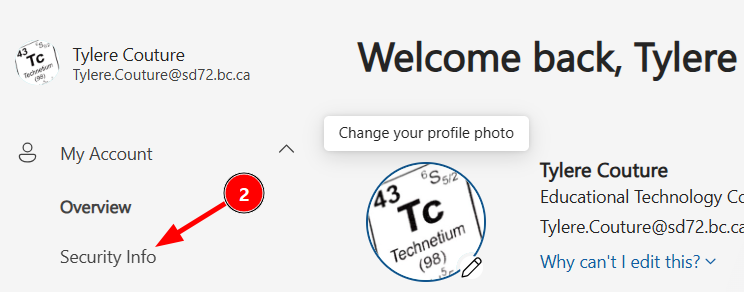
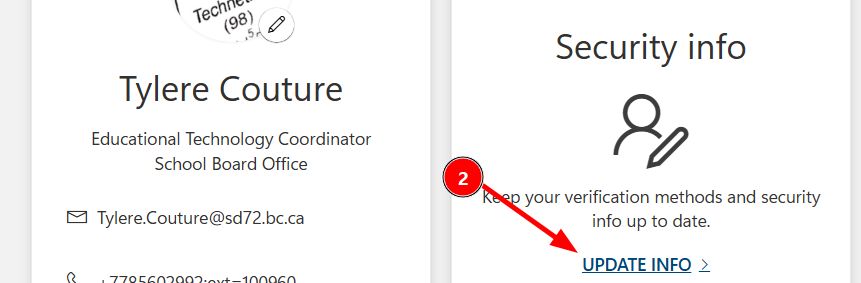
- Click to "Security Info", which might appear in the left menu (new version of the site), or could appear on a large tile up front (old version)
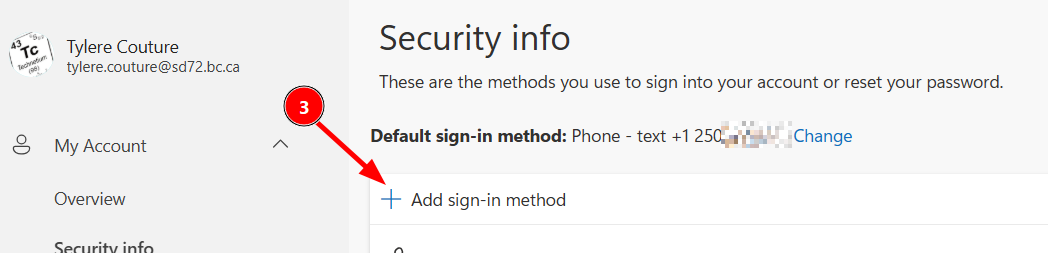
- Click "+ Add sign-in method"
- Then in the popup window choose Microsoft Authenticator:
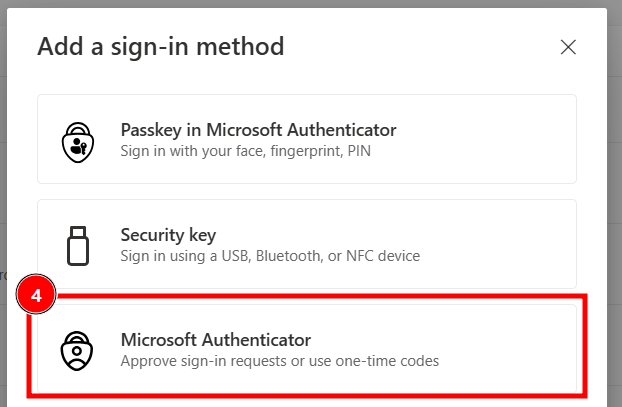 Click Next a few times until you get to the QR code. You'll need to scan this with the Authenticator App on your mobile device.
- On your mobile device, click the QR icon and scan the QR code on the computer screen. Your mobile device should give you a feedback that the account was successfully added.
- Back at the computer, click next on the QR code window.
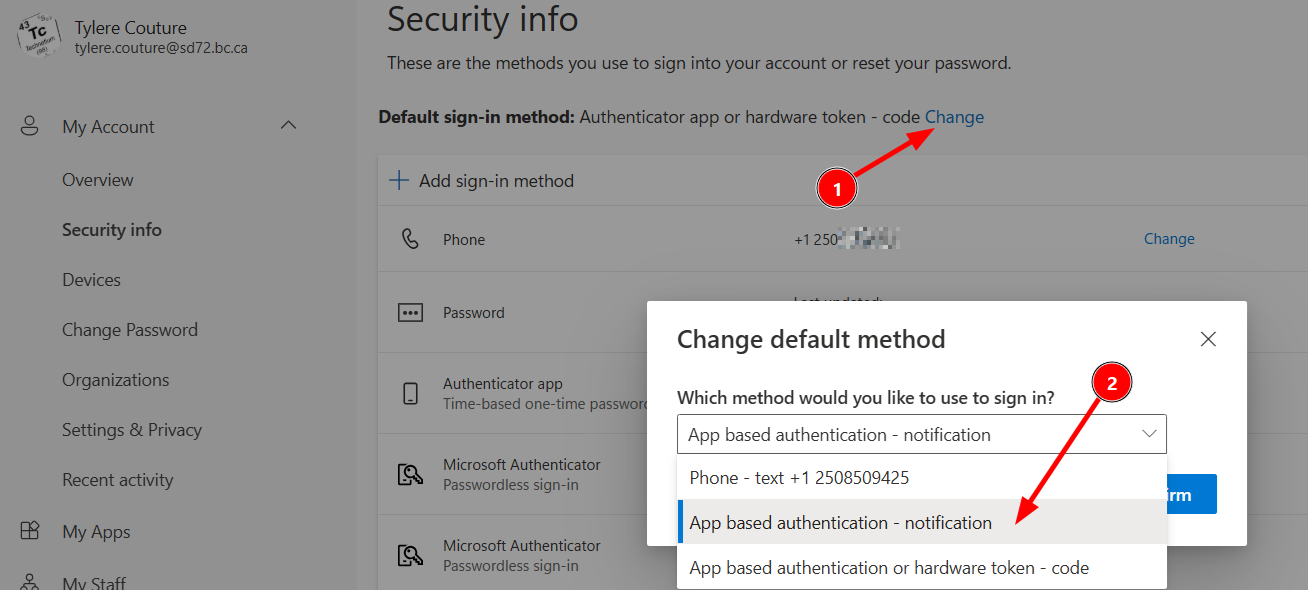
Part 3 - Set Microsoft Authenticator as your Default sign-in method- At the top of your Security Info page, you'll see a Default sign-in method. Click Change.
- Choose one of the "App based authentication" options. I suggest "App based authentication - notification" which will send you a notification on your mobile device with a code to enter.
- Download and install the Microsoft Authenticator app to your device:
Wifi
Wifi on my district device isn't working. What do I do?
Contact the help desk. helpdesk@sd72.bc.ca OR 250.830.2387
How do I connect to the district wifi with my personal device?
Instructions for connecting to the wifi are explained in THIS Tech Untangled Blog post.
Where do I find the password for the "guest" wifi?
The IT department sends out the guest password at the start of each school year. It is posted under the Information Technology section of the Knowledge Centre on the employee portal.
I (or my student) am having difficulty connecting to the wifi with my personal device. Where can I get help?
Seek out the tech savy colleagues in your building, check out the Tech Untangled blog post for connecting to the wifi or visit the Top Ten Technology tips and tricks webpage that includes instructions for troubleshooting this. Please do not contact the IT helpdesk.
Student Safety and Security
I would like to use an app or online website with my students. Am I able to do so?
All apps or online applications need to be vetted before using them with students. Please check the Approved App list first and if you don’t find it on the list, complete THIS form to put in a request.
I would like to use an app on the approved list BUT it states in the description that consent forms are required. If I have the FIPPA one signed that is handed out at the beginning of the year, is this enough?
No. In order to use applications where student information is stored outside of Canada, consent forms specifically designed for this purpose must be used. These can be accessed HERE. Please refer to either the online application page on the 72 Learning Hub OR the Approved app list for what type of consent is required.
I’d like to take pictures of students inside my classroom NOT for publication purposes. Am I still required to have a FIPPA form signed?
As long as the pictures are not posted in a public (outside of classroom) area AND there is not a “no photo release” listed in MyEd, you are safe to do so.
I would like to use my personal device to take pictures of students. Am I allowed to do this?
You can use your personal device IF you have OneDrive installed and you take the pictures through the OneDrive app so that it is stored in your SD72 OneDrive. HERE are a set of instructions on how to do so. You cannot store student information on personal devices – especially if your personal device is set to backup to a cloud location.
I would like to use my students’ SD72 email addresses to sign them up for an online application. Can I do this?
Each application has its own EULA and privacy policy. Please refer to the “best practice” recommendations for each app before using ANY Personally Identifiable Information.
I would like the students to use apps installed on school devices to create projects that will have pictures of them. Am I safe to do so?
Yes, any app installed on the school iPads have been vetted for use as they store information on the local devices. Best practice would be to delete any personal student information once the project is completed. (However, please do not confuse this with using the iPad to access online applications. This is NOT the same process.)
I would like to use an app on the approved app list that requires creating a student account. However, I’m able to do so using “nicknames”. Am I safe in doing so?
Yes. If you can create student accounts using anonymous information AND ensure the student doesn’t store any PII (personally identifiable information) you are not violating any FIPPA laws.
Technology Resources
Where can I find more troubleshooting information?
A "Top Ten Technology Tips" page has been created with quick instructional sheets to help you troubleshoot common technology problems.
I'm not sure if an application or website that I would like to use has been approved OR is safe for student use. Where do I find this information?
All this information can be found on our "Online Applications" and "Privacy and Security" sites including the approved list, the application form as well a quick infographic to help determine whether consent is needed for student use.
I learn best by watching instructional videos. Where can I find some that will be useful to me?
.jpg) The ITC YouTube channel has a number of playlists specifically created for applications used in our district. Some of the videos were created by SD72 staff, others have been added to the playlists as they offer important helpful information.
The ITC YouTube channel has a number of playlists specifically created for applications used in our district. Some of the videos were created by SD72 staff, others have been added to the playlists as they offer important helpful information.How do I access the Tech Untangled Blog?
.png) The Tech Untangled Blog can be found HERE. Use the category drop down to select "Tech Untangled".
The Tech Untangled Blog can be found HERE. Use the category drop down to select "Tech Untangled".

 Google Translate